Controlling my SONOS system with Lumo AI from Proton
Lumo AI is the AI chatbot brought by Proton (Protonmail etc) with privacy by default and by design. Only issue, it was limited to chat only, doing some RAG online etc, and very efficient, but couldn’t control things, until a few days ago.
On 2026 Nov 17, Proton released « LUMO CONNECTORS », available in their Lumo Desktop edition, on Windows, Linux and MAC. Lumo DESKTOP only.
Proton launches Lumo Desktop, bringing connectivity and automation to privacy-first AI
And aside of the native connectors, you also have the magic option, the custom MCP connector, which opens the door to some real fun.
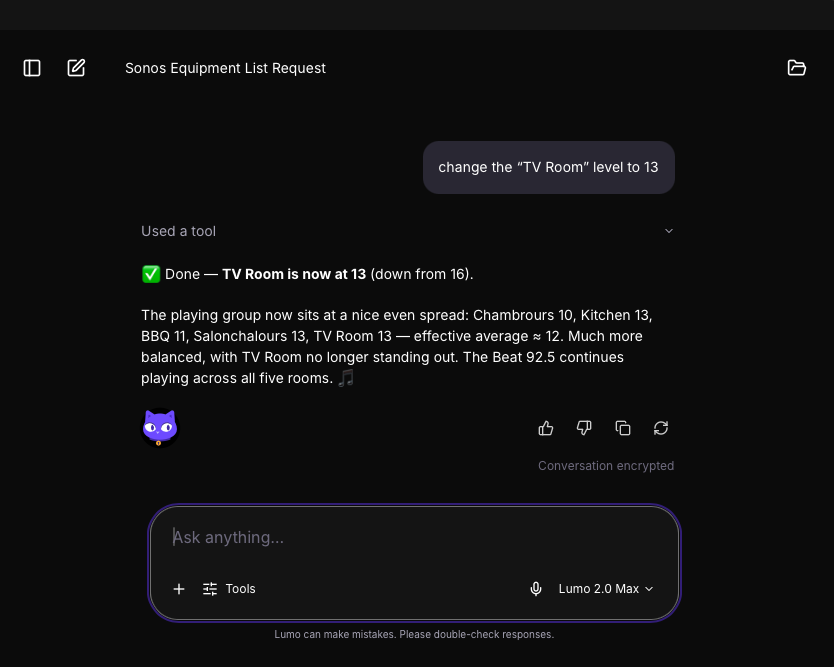
Yes, it works, for my first Lumo MCP integration I wanted to control my SONOS system, as I really don’t like the fact that it’s under cloud or proprietary app control (I still use the app to verify settings etc, but I might stop at some point).
NOTE / UPDATE : Using a smaller model gives good results and works way fasster. I started with Lumo 2.0 Max as shown above, but it works even better and faster with Lumo 2.0 Lite at this point (same everything except picking the other model)
But you are right, SONOS provide native MCP integration for S2 app ONLY !! And I do have my SONOS Connect:AMP Gen 1 that I would have to get rid of, in order to have the S1, so I’m stuck on S1.
That’s non negotiable, I hate to waste good working hardware. They manage some decades old speakers which I had back in France ! It’s almost emotional.
So I did dig online, and first I found a project on Github « sonos-mcp-server » from WinstonFassett that worked, but not bringing all the features I needed. A little more digging and found the gem I was looking for !!
Meet « sonos-py », from « jenreh », a Local Sonos controller, bringing CLI and MCP server, no cloud required ! (And you know me, he got me at « no cloud required » !!!! )
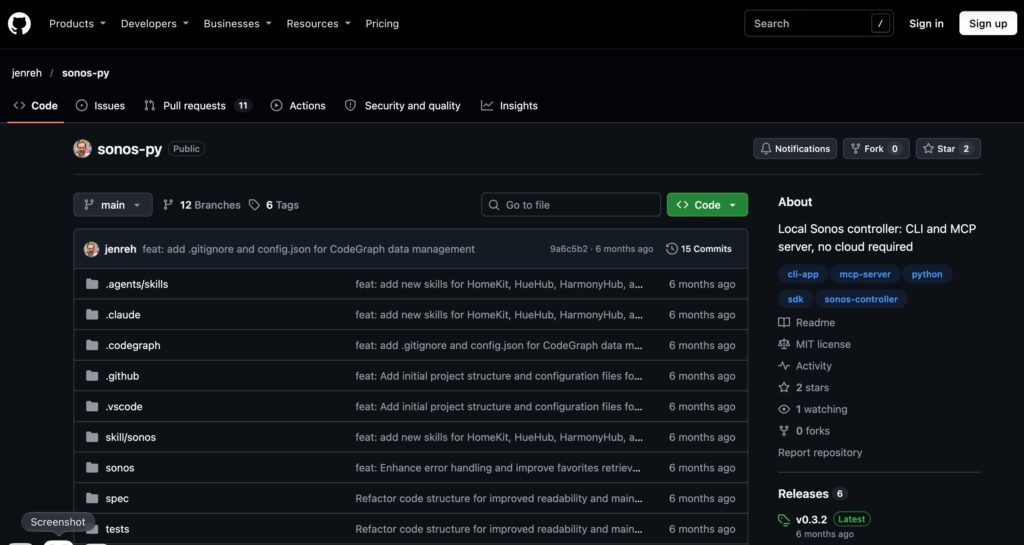
On your MAC (or Linux, or else) you’ll need : Python, UV, and installing with pip (see below)
I had to install the latest Python on my MAC, very easy, package available here : https://www.python.org/downloads/macos/
From there, opening a terminal, and installed « uv » as it’s part of the requirements for the project, which is available here : https://docs.astral.sh/uv/getting-started/installation/
with both « uv » and « python » on the MAC, I was ready to kick things !
Once you have installed the tool using the pip command (pip install sonos-py), you can run your first CLI command :
sonos discover (see if it works and find the stuffs on your local network)
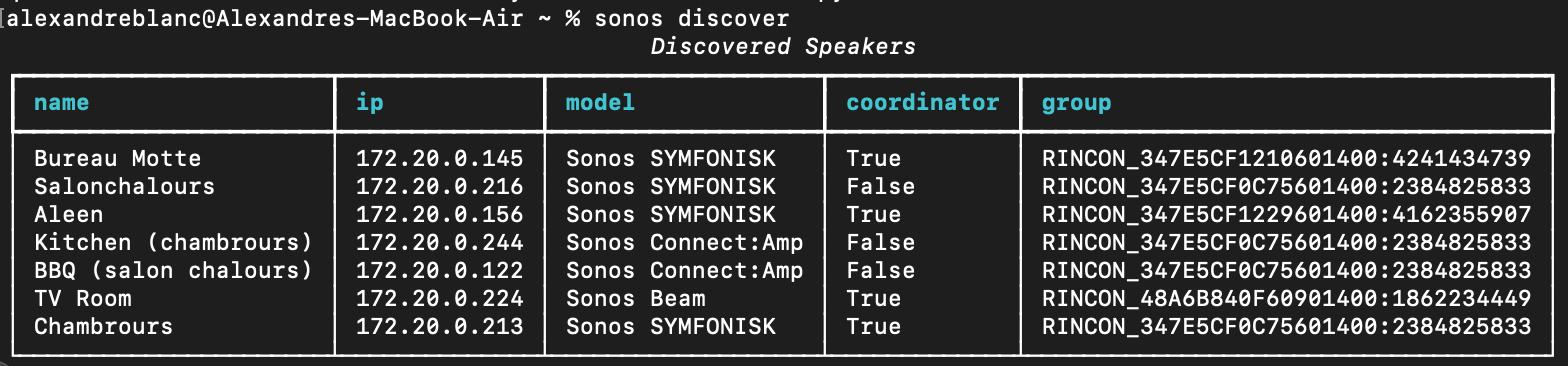
Then, now that it works, you start the MCP server (sonos-mcp) :

You are now ready to connect Lumo desktop to your MCP server !
In your Lumo AI desktop client, go in the menu « Lumo, settings, Connectors, Add MCP Server… » (Add a custom MCP server) and fill as follow :
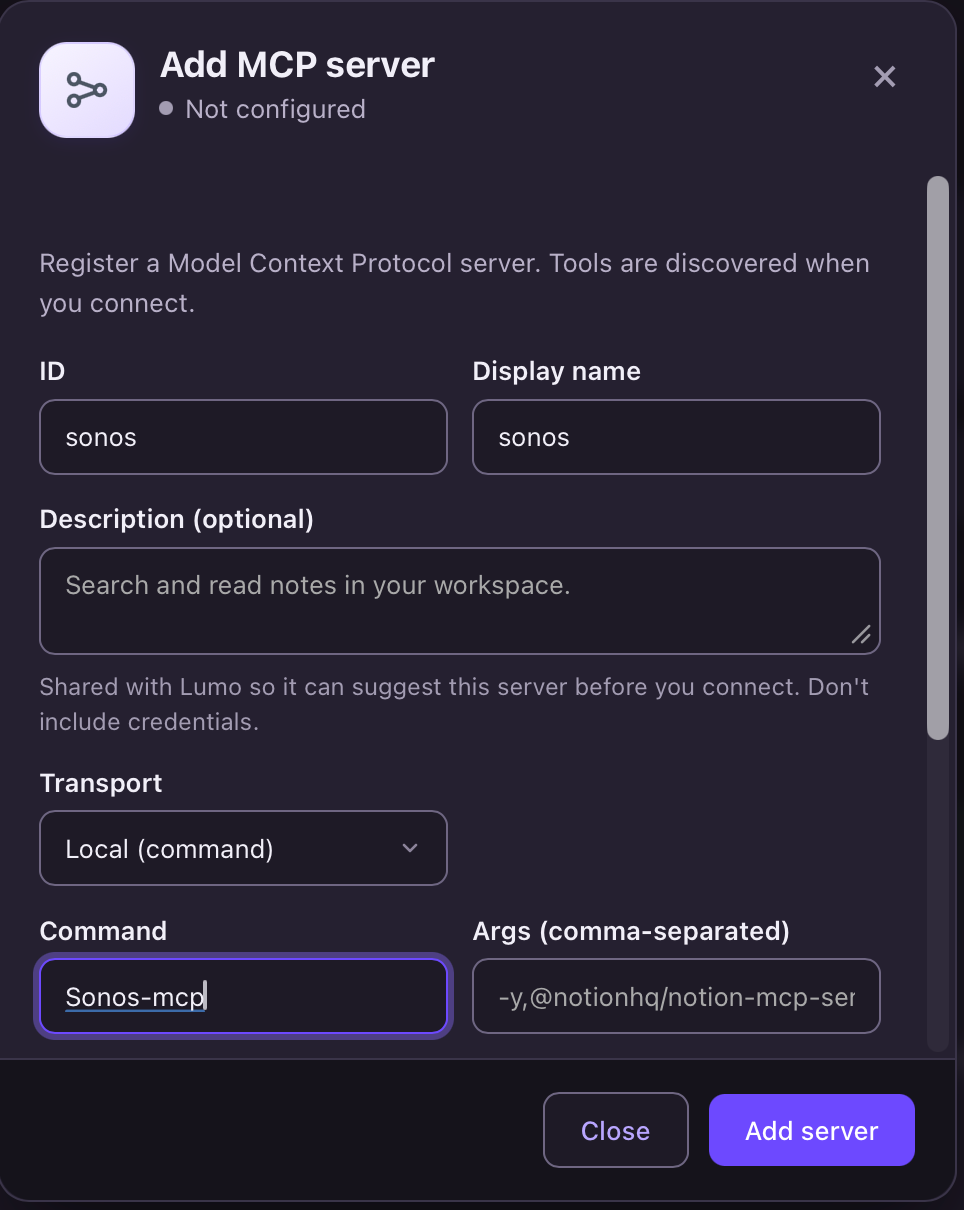
And once added, it should appear as this :
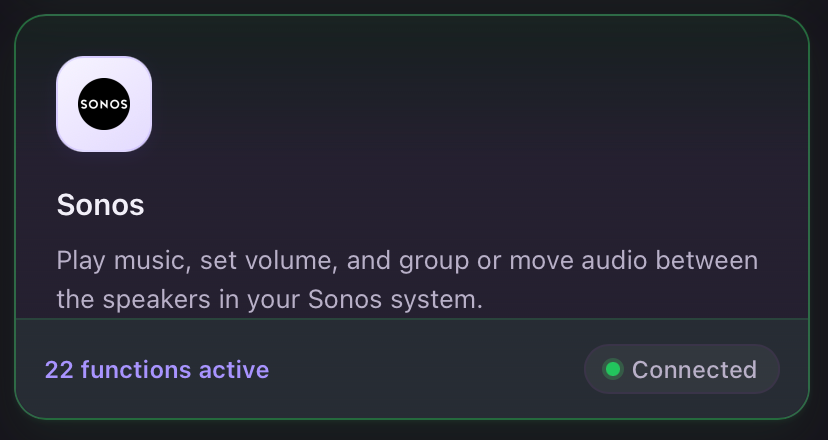
And now your Lumo is able to use the 22 functions on your Sonos system !!! Super cool !
But that’s not enough, the functions provided by the MCP are good, but not as good as the capabilities of the command line.
By example, it can’t get your Sonos favorites and play them on a group of speakers as you’d like. The function « sonos favorites list » is not exposed in the MCP.
So we need to give more power to Lumo on the machine, so it can use the capabilities of the command line.
There is an obvious security challenge, while it’s almost safe to allow Lumo to use the MCP without confirmation, I wouldn’t allow this for the command line.
To set the command line (shell) in Lumo, you first need to grand Lumo an access to your filesystem, for this, we’ll create an empty direction that will just be used as a working directory.
In the connectors list, you have « Filesystem », which you’ll enable by granting access to one empty folder.
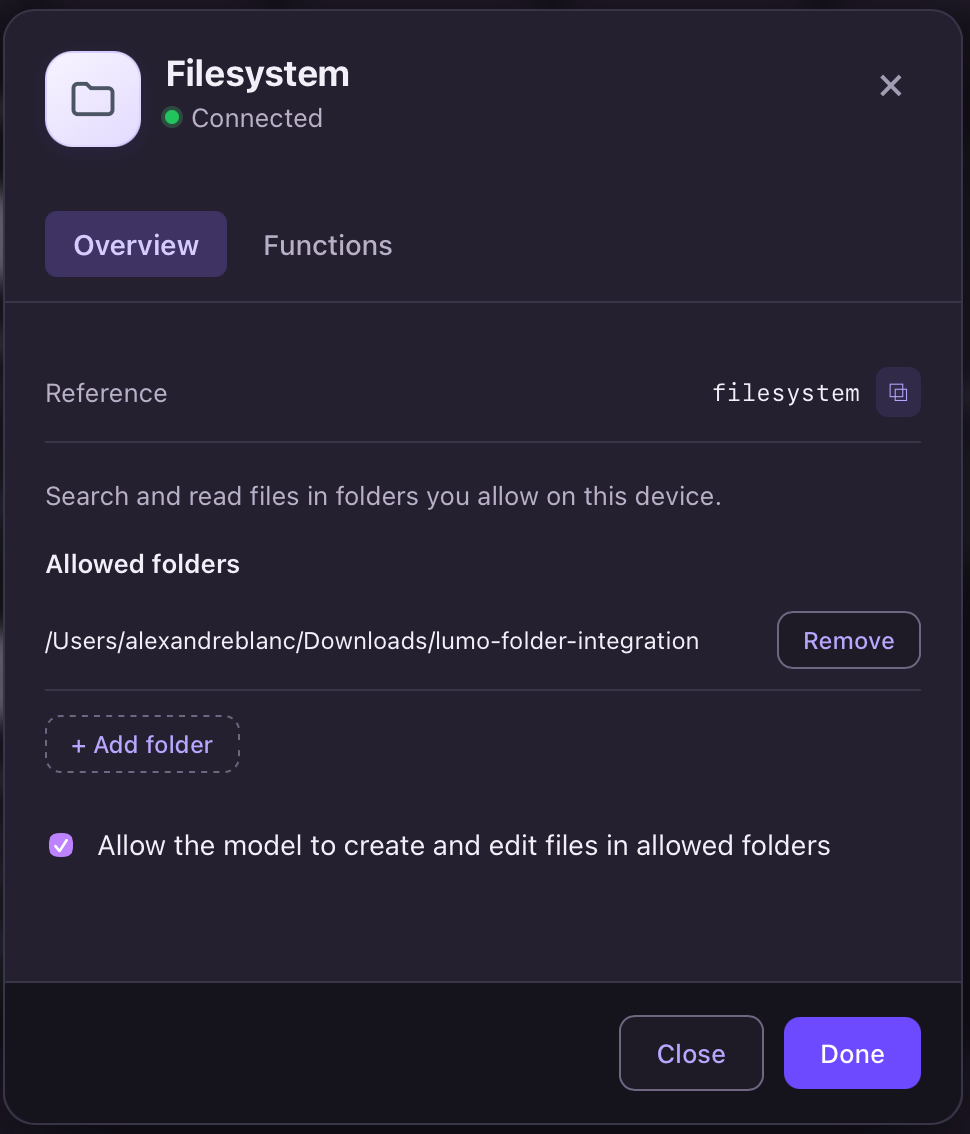
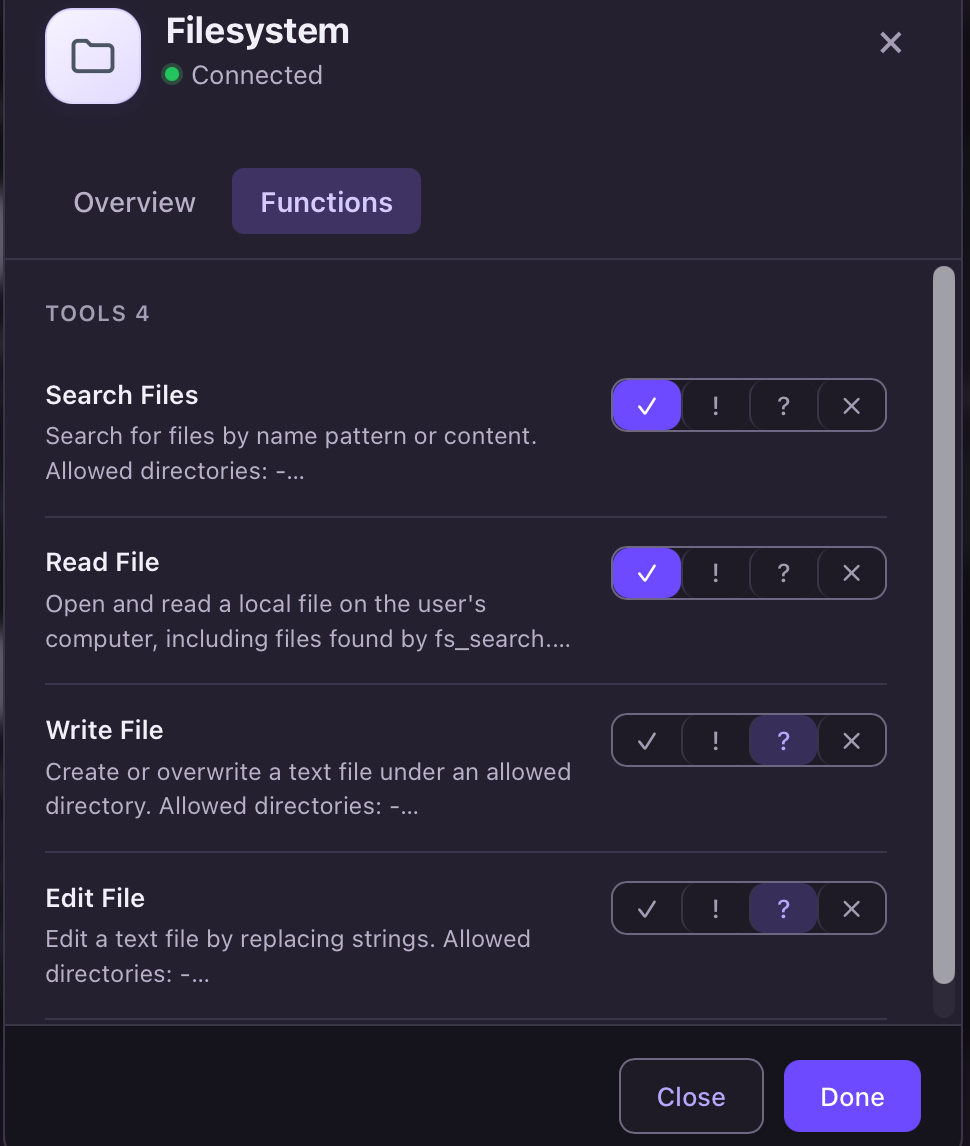
And the security is set under the « Functions » tab as follow (we don’t want to grand unlimited access to the folder anyways) :
From there, we can then grand Lumo an access to the shell of the machine, which will be limited to this folder with the above rights. By enable the « Shell » connector, you grand Lumo access to the shell, and for this sensitive one, you limit access by asking for confirmation for each action, as follow :
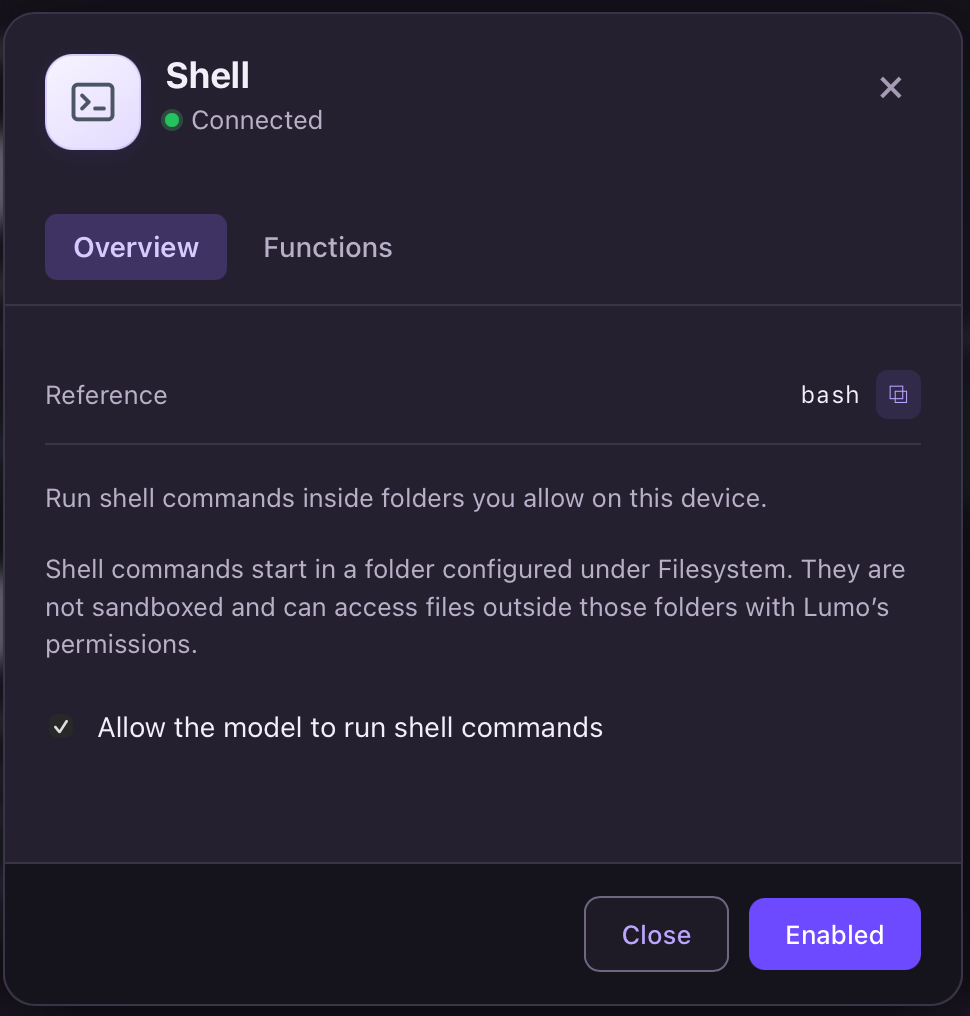
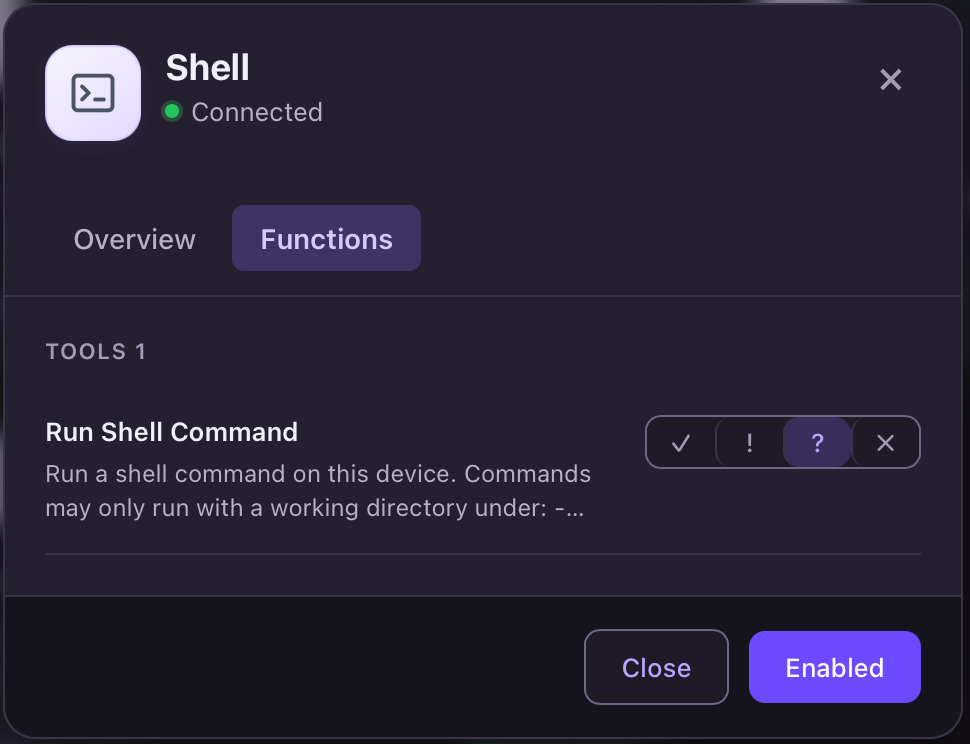
with this setting, you’ll have to confirm every shell request in Lumo, avoiding potential abuses on your machine. Anyways, the shell access is only requested for the missing functionalities, most of them are happening through MCP.
When Lumo tells you it can’t achieve what you want, with a prompt like this :
you now have access to a shell, can you give a try to the « sonos favorites list » command?
and then it will learn from there. The agent can’t guess the functions from the command line, unlike the MCP, there is no direct integration that expose the functions and their use, but they are listed on the github repos under « CLI referense » as follow :
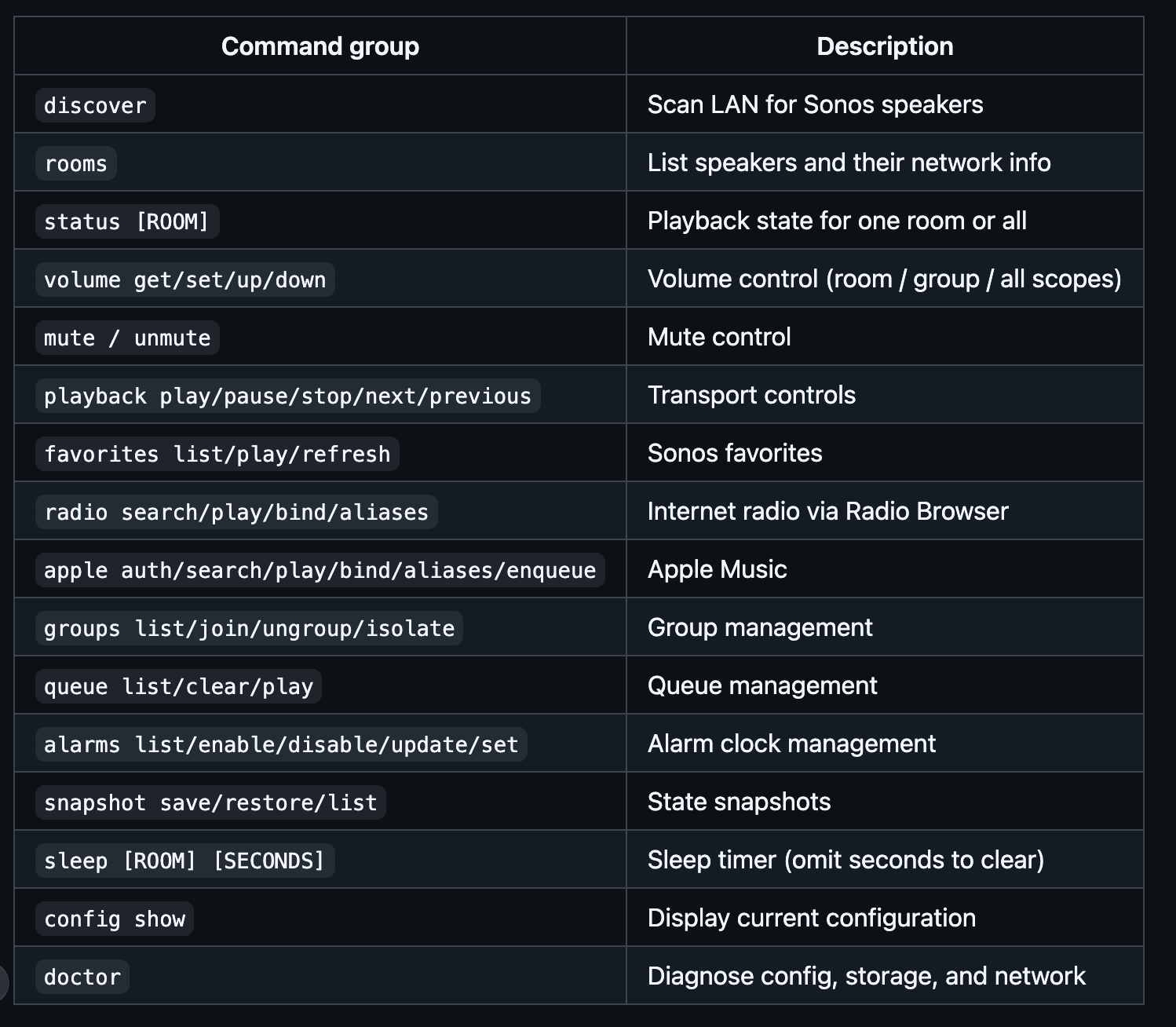
And from now on, you are in full control of your Sonos system via Lumo !!! Yay !
Obviously, the MCP server needs to keep running to maintain the link between Lumo and your Sonos stack, and will only work on the machine where the connectors are running.
I tried using the same chat on my mobile, but it ended stuck into searching online rather than triggering actions on the mac, which somehow is a good thing too.
I hope this will help some who wants to have fun with AI, MCP and Sonos, running as much as can do, things locally !

Ajouter un commentaire
Pages
- À propos
- Alexandre Blanc Experience or work background
- Connected=hacked, cloud=leak, why
- Keeping track for my speaking events / appearances
- My take on Zero Trust – SP 800-207
- Openvpn and pihole on OVH VPS Server FAQ
- Raspberry 3 router project FAQ
- Spotting LinkedIn fake profiles, the tail of industrial spying, should I trust this contact ?
Search this Site
Archive
- novembre 2026
- août 2026
- avril 2025
- juin 2024
- mai 2024
- mars 2024
- février 2022
- janvier 2022
- octobre 2021
- septembre 2021
- mai 2021
- octobre 2020
- juin 2020
- avril 2020
- avril 2019
- janvier 2019
- juin 2018
- mars 2017
- octobre 2016
- août 2016
- mai 2016
- septembre 2015
- mai 2015
- février 2015
- novembre 2014
- septembre 2014
- août 2014
- janvier 2013
- décembre 2012
- juillet 2012
- janvier 2012
- novembre 2011
- octobre 2011
- mai 2011
- avril 2011
- mars 2011
- février 2011
- janvier 2011
- décembre 2010
- novembre 2010
- octobre 2010
- septembre 2010