Archive for octobre, 2020
How to delete all resources in azure to avoid charges after trial on your forced credit card registration
Warning, this article aims to show you how to delete everything, so make sure you have backups of your data and anything before deleting resources !!! In my case, this was after course, and I did not want anything to remain.
I assume that if you manage azure resources, you know what you want to delete. Be careful.
So you went for an azure training, and you have been asked to either have an active account or a trial account.
You created your account and were forced to provide your credit card despite the fact that you absolutely don’t plan to give a single buck to the cloud.
But the cloud nature is to take money, a lot of money, so the very first step, before you can do anything, it to take your credit card.
I recommend you use a temporary credit card like privacy.com or lastcard.com based, or even your if your bank provide temporary credit cards.
Anyways, here we are, for some reason you had to setup stuff in azure and you don’t want to take any chance, make sure you cleanup as much as can do. It took me a while to get this, and this was not 100% clear for the trainer as well (full cleanup process, platform change often).
So here is how you can cleanup everything.
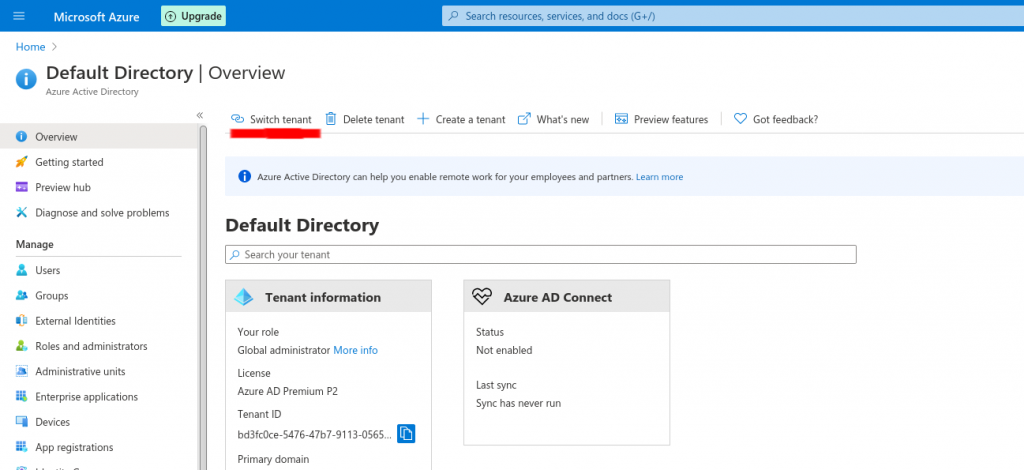
For each tenant you want to get rid of (most likely all) you’ll have to do this (in Azure portal, you can switch tenant by going to the « Azure Active Directory » tab, and use the menu « switch tenant ».
While in the tenant you want to clean up, we’ll use the « Azure Resource Explorer » as key tool in this.
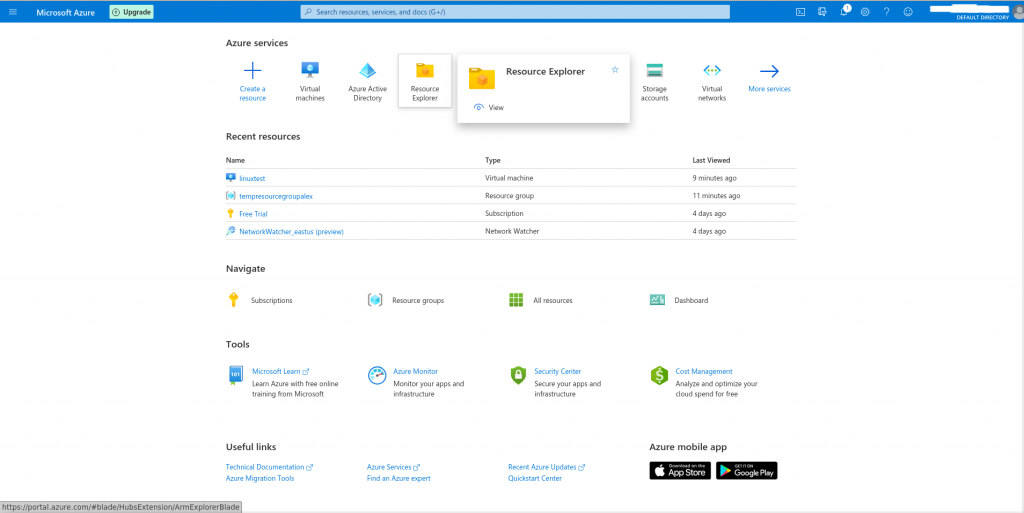
This takes you to the Azure Resource Explorer blade (yes, panels or tabs are called « blades »), in which all resources are listed under « Subscriptions ».
So you’ll expand the Subscriptions tree, for each and every subscription in which you want to delete assets.
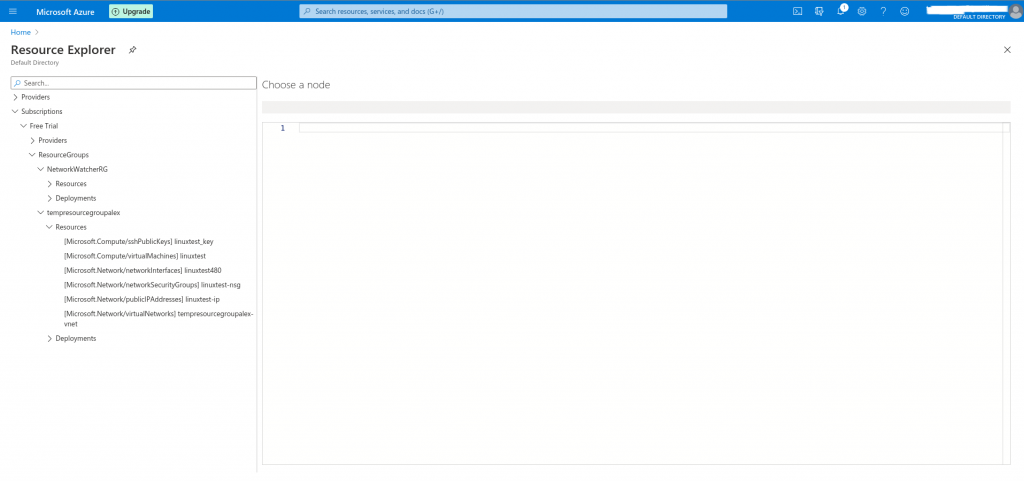
You expand all the « ResourcesGroups », and you’ll go delete assets 1 by one under « Resources » for each « ResourcesGroup »
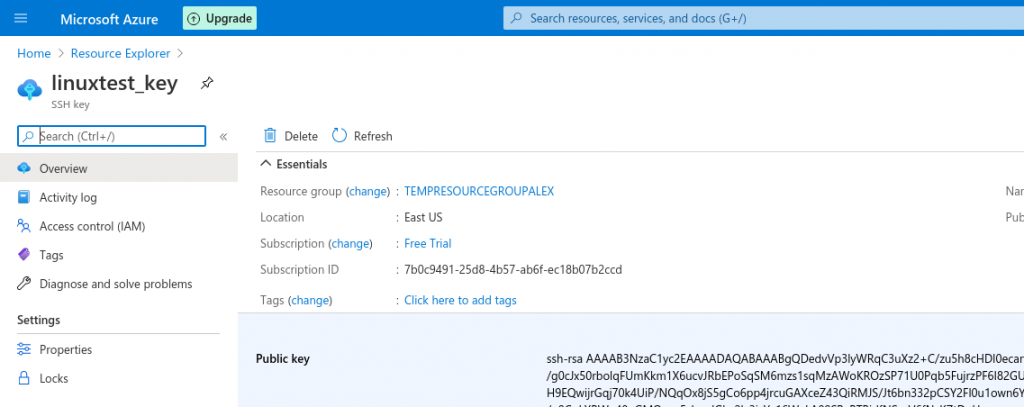
Select a resource, and above the JSON detailed configuration, you click on « Open blade »
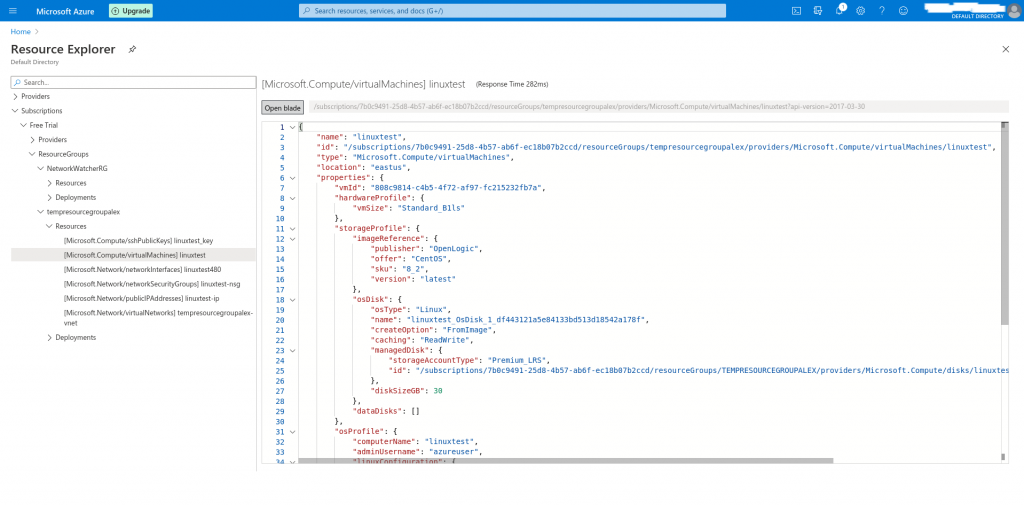
It will take you to the resource blade, from where you can delete the resource
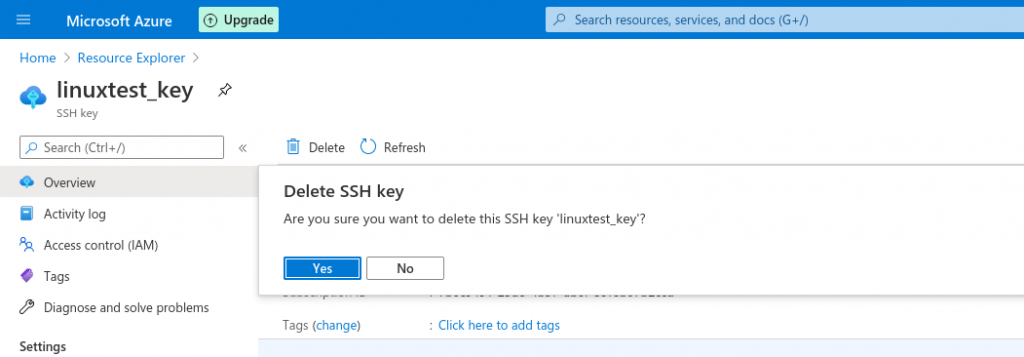
It will ask for confirmation, confirm :
And then from the navigation tree, go back to Resource Explorer.
Do this for each and every items up to the Resources Group itself :
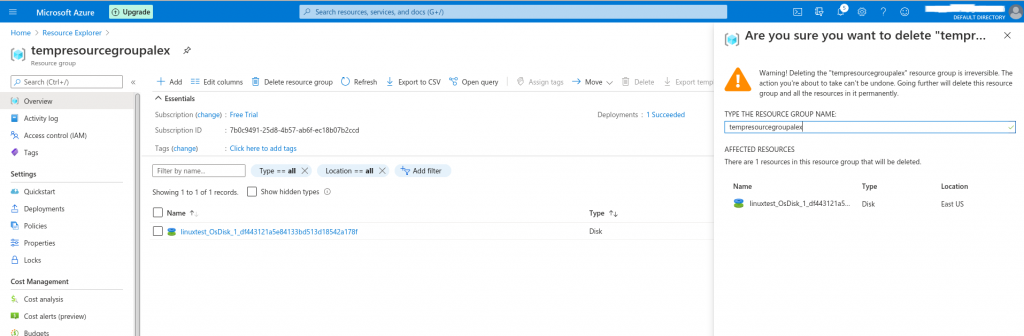
Which you confirm by typing the name.
As the cloud is slow and inefficient, you’ll face a lot of refresh issues, and you’ll have to reload the web page many times to hope to have a clear picture on what is still there and what is not.
The notifications area will pop some partial notifications, but to actually have a detailed view of what is really happening, and what is the status (deleting resources in the cloud is painfully slow and inefficient), so under the « Notifications » button (little bell, top right of the screen), click on « More events in the activity log »
From there, you’ll have a better view of what happens, but by default, it doesn’t show much, you will have to expand each and every task to actually have an idea. As the top level task may show « Succeeded », but some sub task are not done at all.
When nothing is left in the « Resource Explorer », under every Subscriptions, you know you are done, and hopefully, the cloud won’t charge you.
Oups, don’t forget to cancel the subscription ! If it’s a trial, you can’t, you’ll have to wait for expiration, but if you don’t have any resources under it, you should be fine.
Another thing to check, is under « Licenses », search in the top search bar for « Licenses », make sure that NO LICENSE are still assigned. If they are, you’ll be charged !
EDIT : Another point to check are the services you might have subscribed that may not appear under resources, such as « Azure Security center », « Azure Sentinel », and « Azure DDoS protection ». Make sure you disable all of these too ! <— Don’t forget additional services ! They are costly !
EDIT2 : Another point, when it comes to deleting a tenant that was tight to a subscription : You need to have a user created on the domain of the tenant, with Global admin privileges. Then, you have to log in office365 (absolute nonsense) to cancel your subscription :
https://businessstore.microsoft.com/en-in/manage/inventory/subscriptions
From there, you can actually delete the subscription. Then, you have to go back in azure, logout, login (you’d better do this after each and every action, this platform is slow as hell and mostly never reflect any action you take).
Delete the admin user you had to create, and leave only your default user as global admin. Grand subscription management rights to your external/default user, so as you can proceed. BUT, even after doing so, while you should not be charged, you’ll have to wait for he « grace » recovery delay for the subscription to be completely de validated. Then maybe you may be able to delete the tenant. Pure nightmare.
Not easy at all to escape from the cloud, or at least, hoping that they won’t take money on your credit card. Because they will, if you forget anything, they won’t forget you !

Pages
- À propos
- Alexandre Blanc Experience or work background
- Connected=hacked, cloud=leak, why
- Keeping track for my speaking events / appearances
- My take on Zero Trust – SP 800-207
- Openvpn and pihole on OVH VPS Server FAQ
- Raspberry 3 router project FAQ
- Spotting LinkedIn fake profiles, the tail of industrial spying, should I trust this contact ?
Search this Site
Archive
- août 2026
- avril 2025
- juin 2024
- mai 2024
- mars 2024
- février 2022
- janvier 2022
- octobre 2021
- septembre 2021
- mai 2021
- octobre 2020
- juin 2020
- avril 2020
- avril 2019
- janvier 2019
- juin 2018
- mars 2017
- octobre 2016
- août 2016
- mai 2016
- septembre 2015
- mai 2015
- février 2015
- novembre 2014
- septembre 2014
- août 2014
- janvier 2013
- décembre 2012
- juillet 2012
- janvier 2012
- novembre 2011
- octobre 2011
- mai 2011
- avril 2011
- mars 2011
- février 2011
- janvier 2011
- décembre 2010
- novembre 2010
- octobre 2010
- septembre 2010